How to Save Battery and Master Your Fitbit Edge: 10 Pro Tips
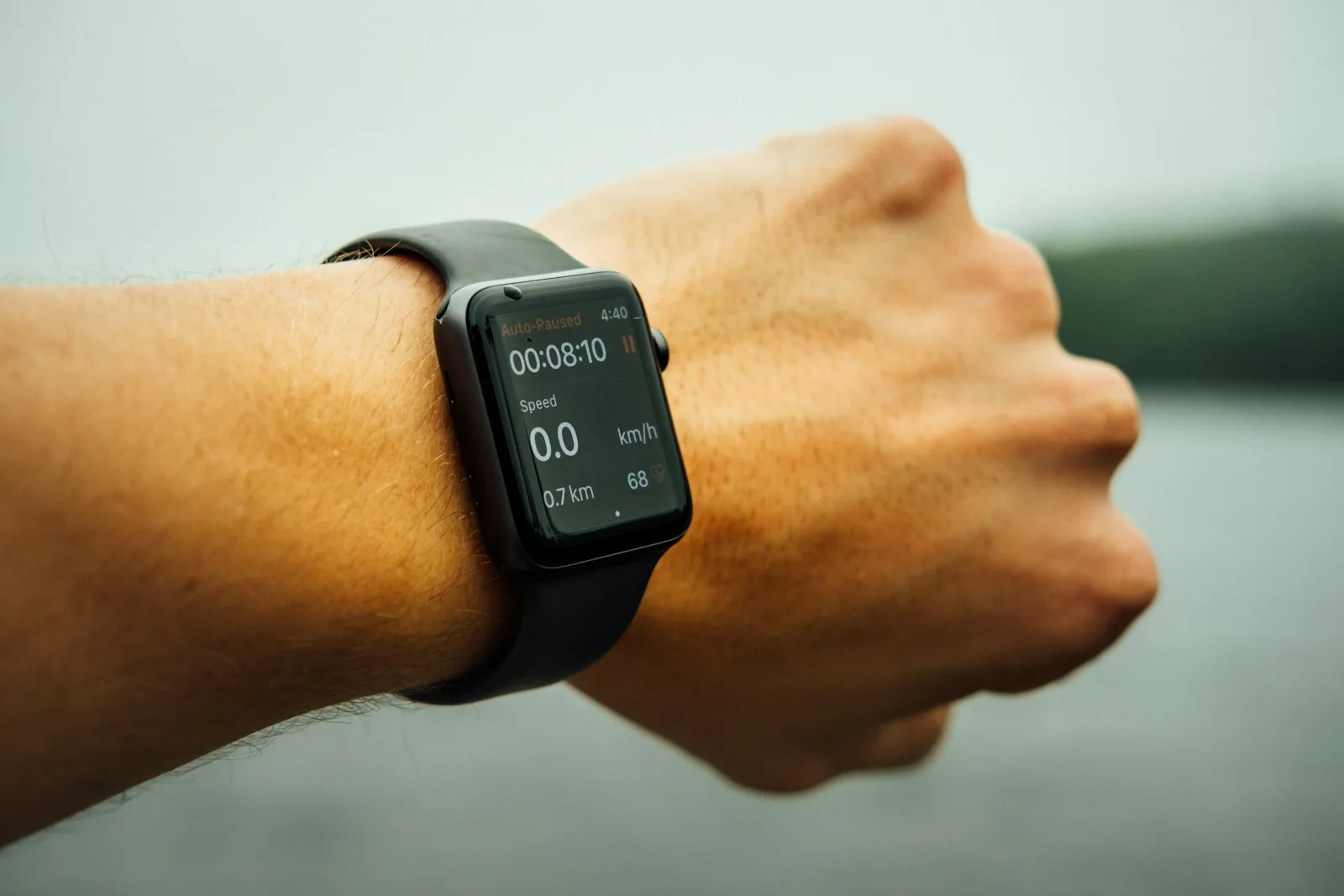
The Fitbit Edge strikes an excellent balance for fitness enthusiasts who want a streamlined tracker with a visible screen for time and workout stats. Whether you’re new to the device or have been wearing it for months, there are numerous hidden features and optimization tricks that can dramatically improve your experience. Here are the most practical ways to get more out of your Fitbit Edge.
Customize Your Watch Faces and Complications
Your watch face doesn’t have to stay the same day after day. Long-press the center of your Fitbit Edge display to reveal a carousel of available watch faces you’ve saved. The final screen in this carousel includes a button that opens the full watch face library directly on your phone app. From there, browse all available options and tap Customize on any face you like. You can adjust color schemes and select which complications appear, such as step counts or weather information. This personalization takes just minutes but makes your device feel uniquely yours.
Flip Your Tracker Orientation to Prevent Accidental Button Presses
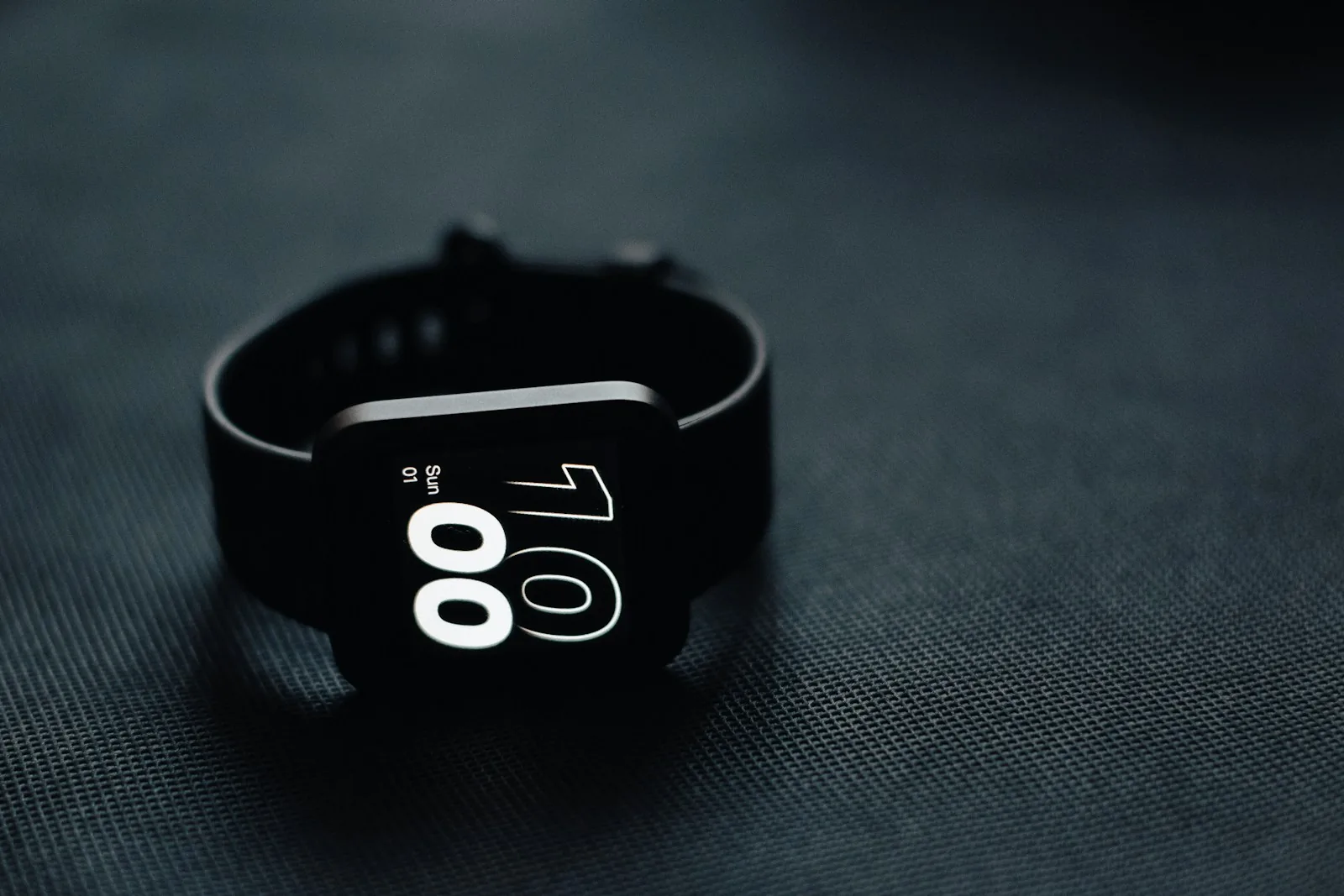
By default, the Fitbit Edge positions its side button on the right. If you wear other jewelry alongside it, or if you wear the tracker low on your wrist where hand movements might trigger the button, you can switch this. Open your device settings in the Google Health app, select Device preferences, and change Tracker orientation to left. The display will flip upside down, so you’ll need to physically turn the watch around on your wrist to read it correctly. This simple adjustment eliminates frustrating accidental presses throughout your day.
Disable AI Coaching Notifications
The AI Health Coach offers valuable insights, but constant notifications can become overwhelming. You don’t have to disable it entirely. Tap your profile picture, go to Google Health Settings, select Coaching, and choose No Coach Insights. This silences unprompted notifications while keeping the Coach available whenever you tap the Ask Coach button. You’ll still have access to AI-powered food and workout logging whenever you need it, without the interruptions.
How to Save Battery Through GPS Settings
Your Fitbit Edge can use its built-in GPS or borrow your phone’s GPS signal. By default, it switches automatically, but you can take control. Go to Device preferences and select GPS settings. If you always carry your phone, configure your Fitbit to always use your phone’s GPS, which will preserve your device’s battery. Conversely, if you prefer your tracker to manage its own GPS and you want to maximize phone battery life, select built-in GPS mode instead. Older phones may actually provide more accurate distance and pace data through the built-in GPS option.
Reduce Step Overcounting
Fitbit devices are notorious for counting hand and arm movements as steps. To address this, go to Device preferences and set your Wrist preference to dominant (your dominant hand). Interestingly, you can also wear the tracker on your non-dominant wrist but still set it to dominant preference, which tells the device to slightly undercount steps and compensate for natural arm motion.
Broadcast Heart Rate to Strava for Better Workout Tracking
The built-in workout app on your Fitbit Edge is minimal and not customizable, but you can enhance it significantly. Swipe down from the top of your screen and tap the heart-rate broadcasting icon. Open the Strava app on your phone, hit Record, and swipe up to access workout options. Select your Fitbit Edge as the heart rate sensor, and now you’ll have lap timing, maps, and detailed distance data during your runs or bike rides. This combination gives you the advanced tracking features that many wearables cost far more to provide.
Use Magnification to See Your Tiny Screen Clearly
The Fitbit Edge’s compact display can be hard to read in bright sunlight. Enable Magnification in Device preferences and toggle it on. Triple-tap the screen with one finger to zoom in to 2x or 3x magnification. You can swipe around to view different parts of the display, then triple-tap again to zoom back out. This feature makes checking stats and complications much easier without straining your eyes.
Master the Five-Minute Charge Hack
The Fitbit Edge charges incredibly fast. If your battery is running low, just five minutes on the charger gives you enough power for a full day according to Google’s specs. Disable the always-on display if it’s enabled for maximum battery extension. If you use the always-on display regularly, you might simply charge for five to ten minutes daily and never wait for a full charge again.
Swap Between Multiple Fitbit Devices
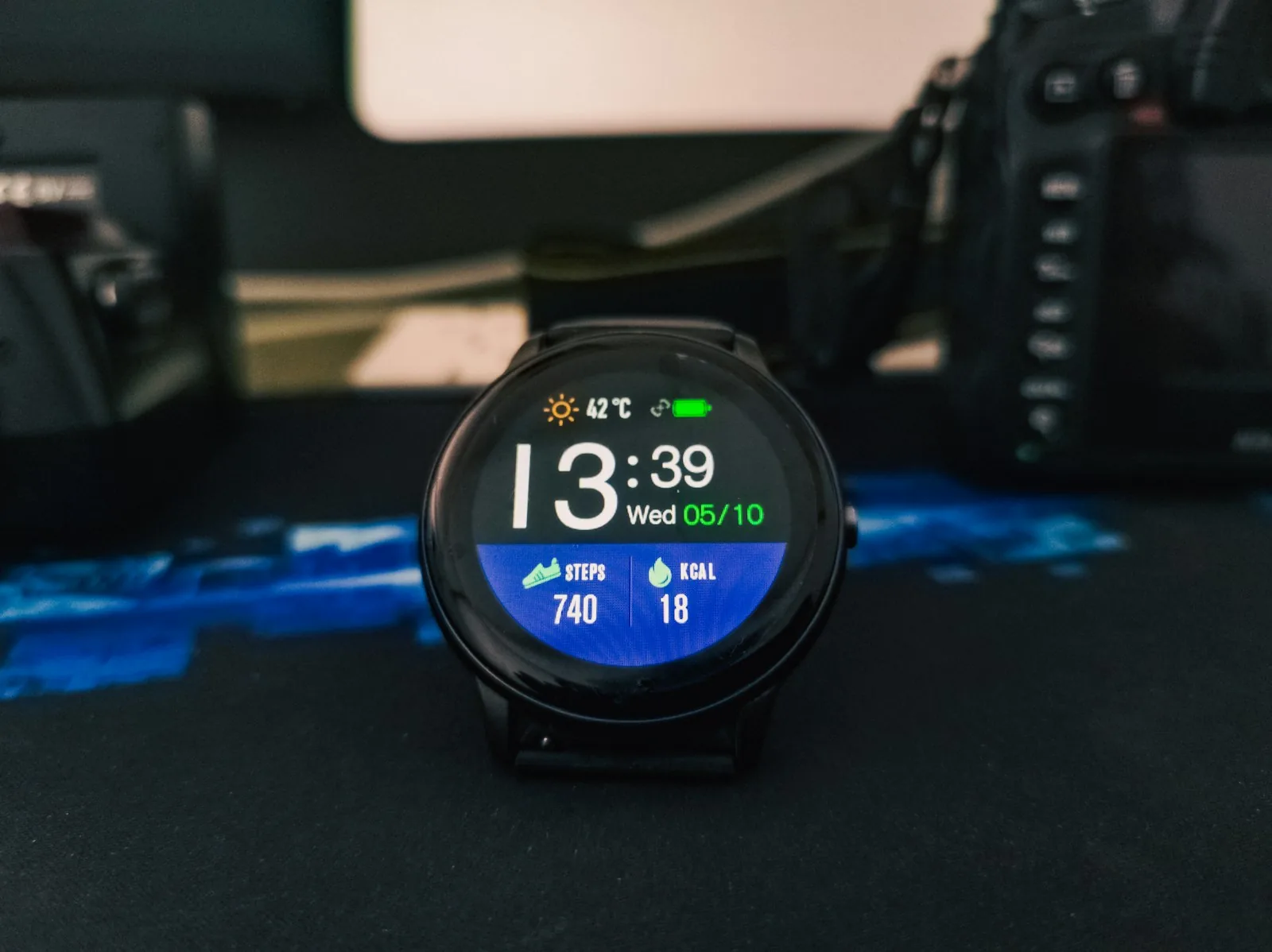
Google now allows your app to work with multiple Fitbit devices simultaneously. You can seamlessly switch between your Fitbit Edge and Fitbit Air, or even a Pixel Watch. Set both up and wear whichever one suits your day, no reconfiguration needed.
Log Your Offline Workouts
If you complete workouts that your Fitbit doesn’t automatically track, you can still record them. Use the Ask Coach button to upload a screenshot or photo of your workout from your training app or journal. Tell the Coach which workout to attach it to, and it will populate your fitness summary with the exercises and data you provide.